
In this article, we will explain how to access Kintone data from EspressReport ES (ERES) by using the CData JDBC Driver for Kintone. We are using Windows for this example and assume that ERES is installed in *C:\ERES*.
CData provides JDBC drivers for Kintone and many other cloud services and SaaS applications. By combining the CData JDBC driver with the JDBC connection functionality in ERES, Kintone apps can be accessed as data sources for reports, charts, and dashboards without writing a custom Kintone REST API integration.
Before You Begin
To follow this example, you need:
- EspressReport ES installed and running
- A Kintone environment with at least one app containing data
- The URL of that Kintone environment
- A Kintone user account or an API token with permission to read the required app
- The CData JDBC Driver for Kintone, using either a trial or licensed installation
If you do not already have a Kintone environment, you can create a 30-day Kintone trial and either create an app or import an existing spreadsheet.
The Kintone URL and authentication details are specific to your own Kintone environment. For example, the account URL may look like https://your-subdomain.kintone.com. These values are not supplied by ERES or by the CData driver.
Install the CData Kintone JDBC Driver
Download the Windows trial installer from the CData Kintone JDBC Driver download page.
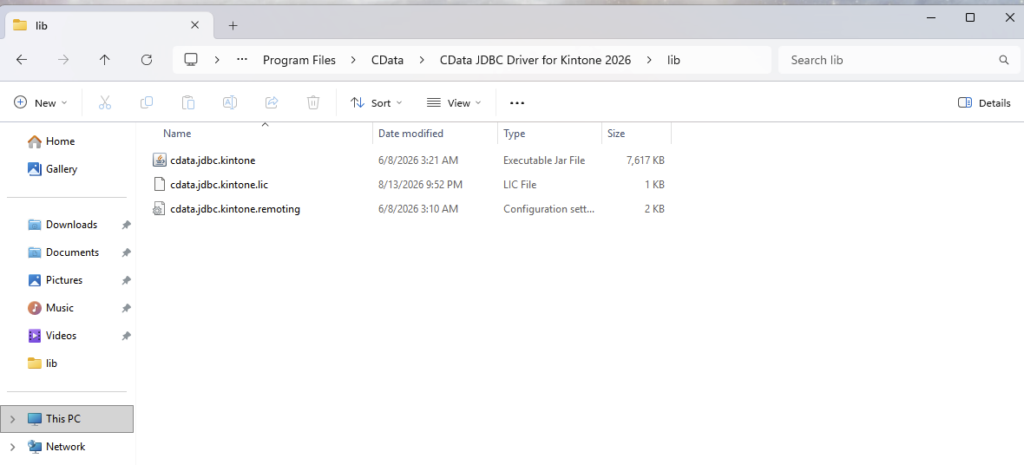
Run the installer and complete the setup according to the installation dialogs. The driver files are placed in the lib directory under the CData installation folder. For example, the currently available Windows build normally uses C:\Program Files\CData\CData JDBC Driver for Kintone 2026\lib. The version year in the folder name may differ for a later release.
The main driver class is cdata.jdbc.kintone.KintoneDriver.
Create and Test the Kintone Connection
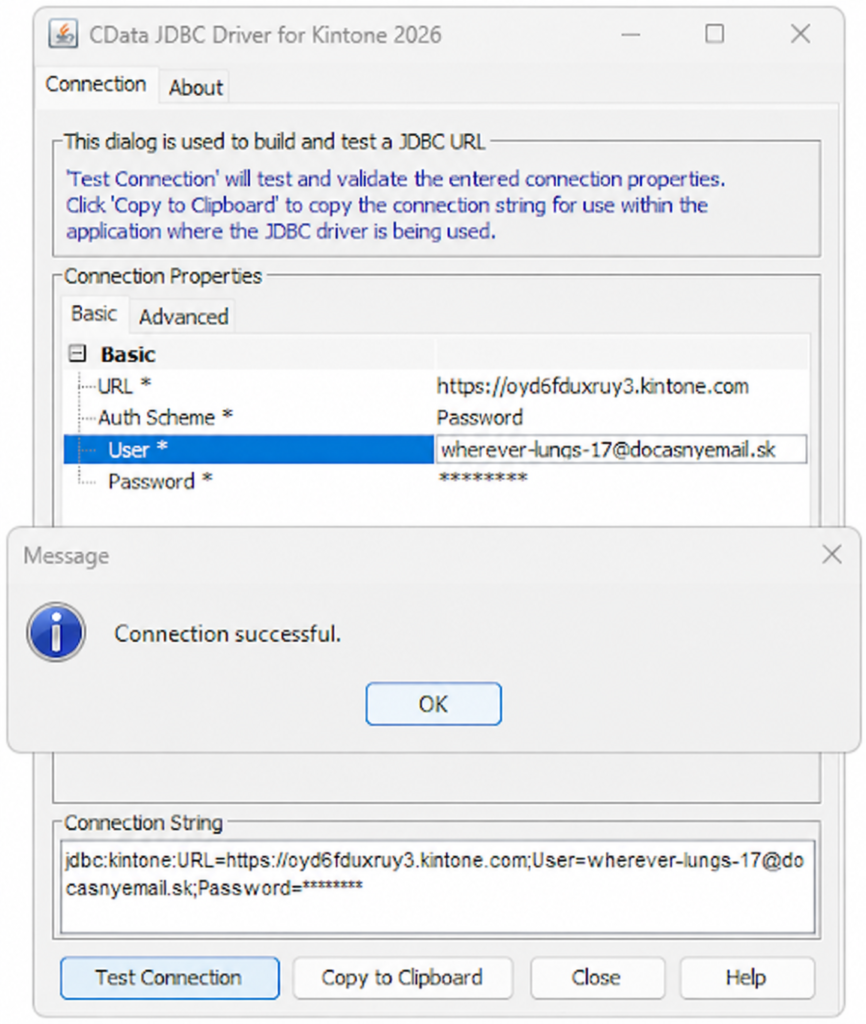
The CData driver includes a connection string builder and test tool. Open cdata.jdbc.kintone.jar from the driver’s lib directory. If double-clicking the file does not launch it, run java -jar “C:\Program Files\CData\CData JDBC Driver for Kintone 2026\lib\cdata.jdbc.kintone.jar” from a command prompt, adjusting the path for the installed version.
The connection can use password authentication, an app-specific API token, or OAuth. The following sections cover the two simplest options for this ERES integration.
Option 1: Password Authentication
Password authentication uses the permissions of a Kintone user account. Configure the connection test tool as follows:
| Setting | Value |
|---|---|
| URL | Your Kintone environment URL, such as https://your-subdomain.kintone.com |
| Auth Scheme | Password |
| User | Your Kintone login name or email address |
| Password | Your Kintone account password |
| Schema | Kintone |
The resulting JDBC URL follows this format:
jdbc:cdata:kintone:URL=https://your-subdomain.kintone.com;AuthScheme=Password;User=your-user;Password=your-password;Schema=Kintone;
Click Test Connection. After the connection succeeds, copy the complete JDBC URL generated by the CData tool. Use the generated value rather than manually retyping it.
Optionally Identify a Specific App
With password authentication, the CData driver normally uses the authenticated user’s permissions to discover the Kintone apps available to that account. ERES Query Builder can then display those apps so the user can select the required data source.
If the required app does not appear during schema discovery, or if the connection should identify one app explicitly, append the AppId property to the JDBC URL:
jdbc:cdata:kintone:URL=https://your-subdomain.kintone.com;AuthScheme=Password;User=your-user;Password=your-password;Schema=Kintone;AppId=123;
AppId is the numeric identifier assigned to a Kintone app. It can be found in the app’s URL after /k/. For example, the app ID in https://your-subdomain.kintone.com/k/123/ is 123. Replace the example value with the ID of an existing app in your own environment; it is not an arbitrary data-source name. If AppId is omitted, the driver can discover all apps accessible to the authenticated user.
Option 2: API Token Authentication
API token authentication limits access to specified Kintone apps and avoids storing a user’s Kintone password in the connection. It is a suitable option when ERES only needs read access to particular apps.
To generate an API token:
- Open the Kintone app that ERES will access.
- Click the gear-shaped App Settings icon.
- On the App Settings tab, select API Token under Customization and Integration.
- Click Generate and enable the View records permission.
- Click Save, and then click Update App to activate the token.
- Record the app ID. It is the numeric identifier for the app and is also visible in the app URL.
Keep the generated token confidential. A token is specific to its Kintone app and only has the permissions selected when it was created.
Configure the CData connection test tool as follows:
| Setting | Value |
|---|---|
| URL | Your Kintone environment URL |
| Auth Scheme | APIToken |
| App ID | The numeric Kintone app ID |
| API Token | The token generated for that app |
| Schema | Kintone |
The resulting JDBC URL follows this format:
jdbc:cdata:kintone:URL=https://your-subdomain.kintone.com;AuthScheme=APIToken;AppId=123;APIToken=your-api-token;Schema=Kintone;
Click Test Connection and copy the complete JDBC URL after the test succeeds.
Do not include a real password or API token in screenshots, documentation, email, or other publicly visible material. Replace secrets with masked values before sharing a connection string.
Deploy the JDBC Driver in ERES
Copy the following files from the CData lib directory into the ERES library directory:
- cdata.jdbc.kintone.jar
- cdata.jdbc.kintone.lic
For this example, the destination is C:\ERES\WEB-INF\lib.
The .lic file must remain in the same directory as the JAR file. After copying the files, restart the Tomcat server where ERES is deployed.
Start ERES Organizer
Log in to ERES and select Organizer from the left menu. Launch the downloaded Organizer application, and then click Data Registry Manager.
Click Add and create a Data Registry with a name of your choice. After creating the registry, select Database and click ADD to create a database connection.
Add the Kintone Data Source
Configure the connection as follows:
| Setting | Value |
|---|---|
| Name | Any descriptive name, such as Kintone |
| Driver List | CData Kintone |
| Driver | cdata.jdbc.kintone.KintoneDriver |
| URL | The complete JDBC URL copied from the CData connection test tool. If a specific app must be identified explicitly, include AppId=<app ID> as described above. |
| User Name | Leave blank if the credentials are already included in the JDBC URL |
| Password | Leave blank if the credentials are already included in the JDBC URL |
If CData Kintone is not available in the Driver List in an older ERES installation, select Other and enter cdata.jdbc.kintone.KintoneDriver in the Driver field.
Click Test Connection. If the driver, license, Kintone URL, and authentication settings are configured correctly, ERES displays a successful connection message.
If the Kintone app is located in a guest space, the connection also requires the appropriate GuestSpaceId property. Refer to the CData Kintone JDBC Driver documentation for this and other advanced connection options.
Add a Query
After adding the Kintone connection, select Queries under the connection and click ADD. Enter a name for the query and open the Query Builder.
The Table Selection dialog displays the Kintone apps available through the configured account or API token. Select the app that contains the data you want to use, and then add the fields required for the report or chart.
The CData driver presents Kintone apps as JDBC tables and their fields as columns. Apply any required filters or sorting, use Datasheet View to confirm that the expected Kintone records are returned, and then save the query.
Create a Report or Chart
After saving the query, select it in Organizer and click VIEW. Choose Create Report or Create Chart, and complete the corresponding designer wizard.
The resulting report or chart uses live Kintone data through the CData JDBC connection. When Kintone records are updated, refreshing or rerunning the ERES output retrieves the current data.
Conclusion
By using the CData Kintone JDBC Driver with EspressReport ES, data from Kintone apps can be added to an ERES Data Registry and used in reports, charts, and dashboards. The CData connection handles access to the Kintone API, while ERES provides the graphical tools for querying and visualizing the data.